 company
Put your gear on the list
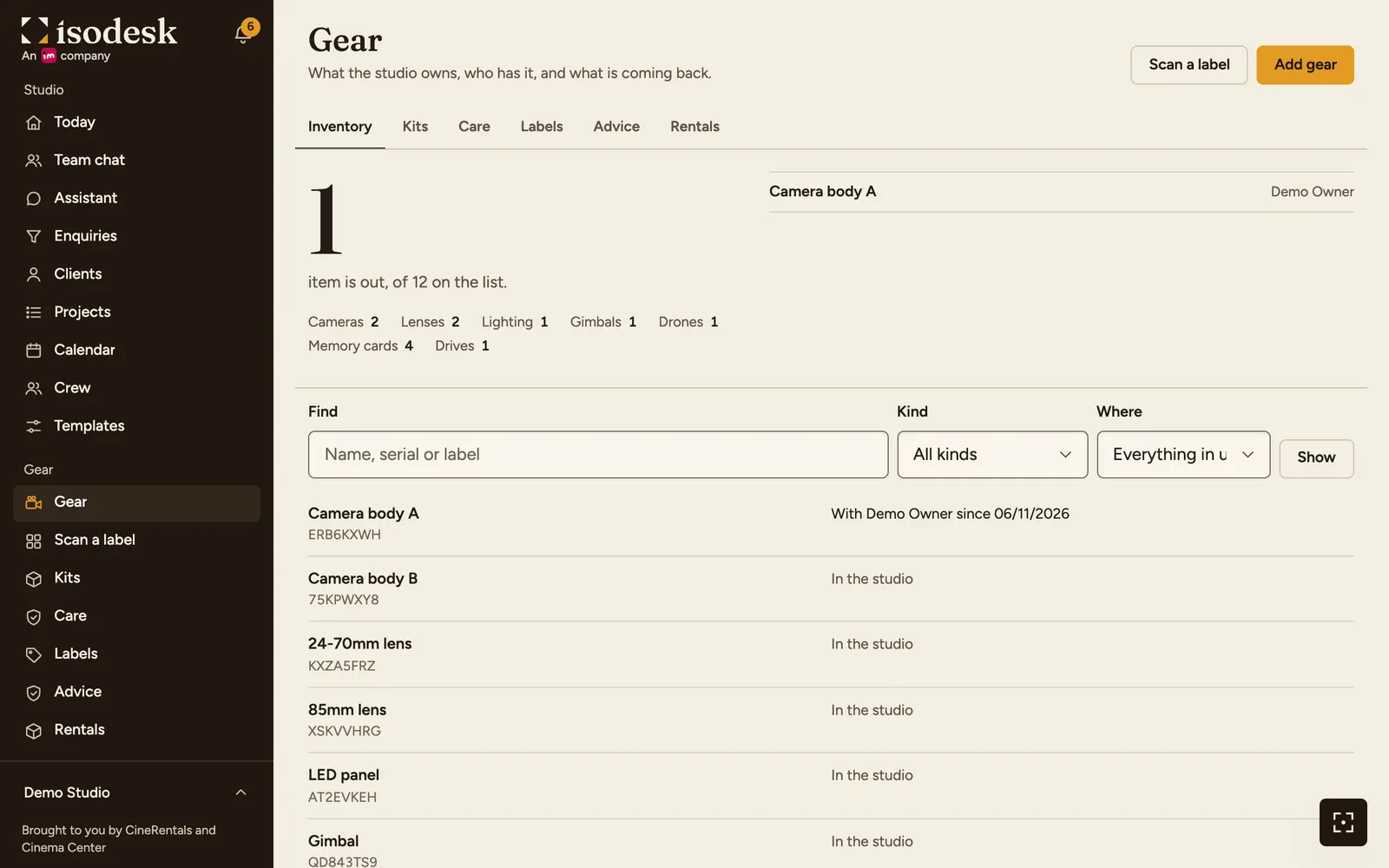
- Open Gear and press Add gear. Choose a category, such as Camera, Lens, Lighting, Gimbal or Accessory. Say what it is, and add the serial number, the bill, the warranty and the insurance if you have them.
- Have several of the same, such as memory cards? Enter how many, and each one gets its own number and label.
- Gear a crew member owns can go on the list under their name. It then counts for them on the events they work.
- Make a kit, such as Wedding kit A, to put a whole set on an event at once.
- Open Labels to print a sheet of QR labels, and stick one on each item.
- Owner, admin and manager see prices, bills and insurance. Your crew see the gear without them.
Plan the gear for each event
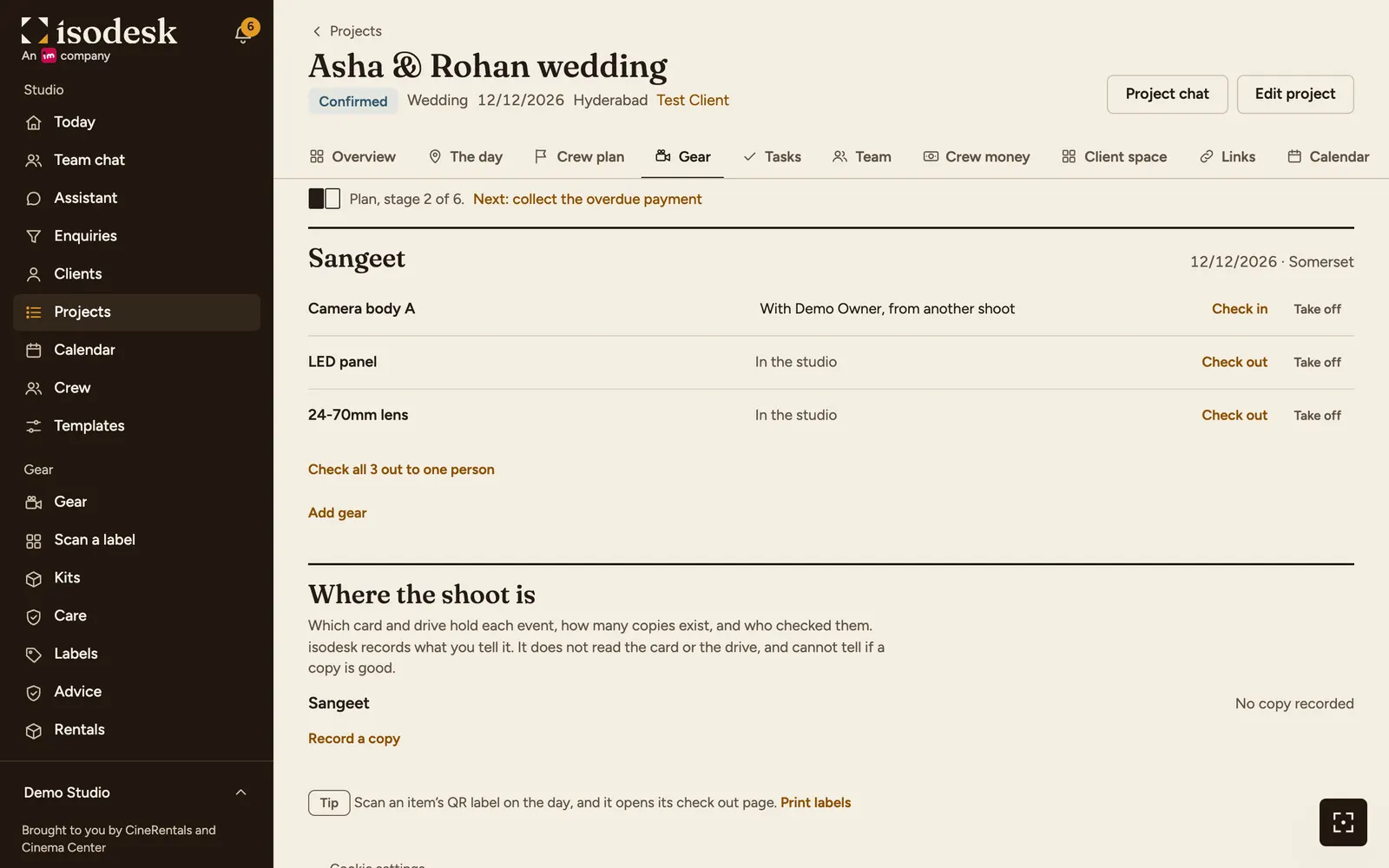
- Open a project and go to the Gear tab. Press Add gear on an event, then tick items or choose a kit.
- The tab compares cameras and drones with the crew plan, and says how many are short. Crew who keep their own camera on the list count for themselves.
- If an item is already on another event that overlaps, or on the same day in another city, you see a warning. It is still saved, and you decide.
- A project with no gear on it is asked nothing about gear.
Check gear out and back in
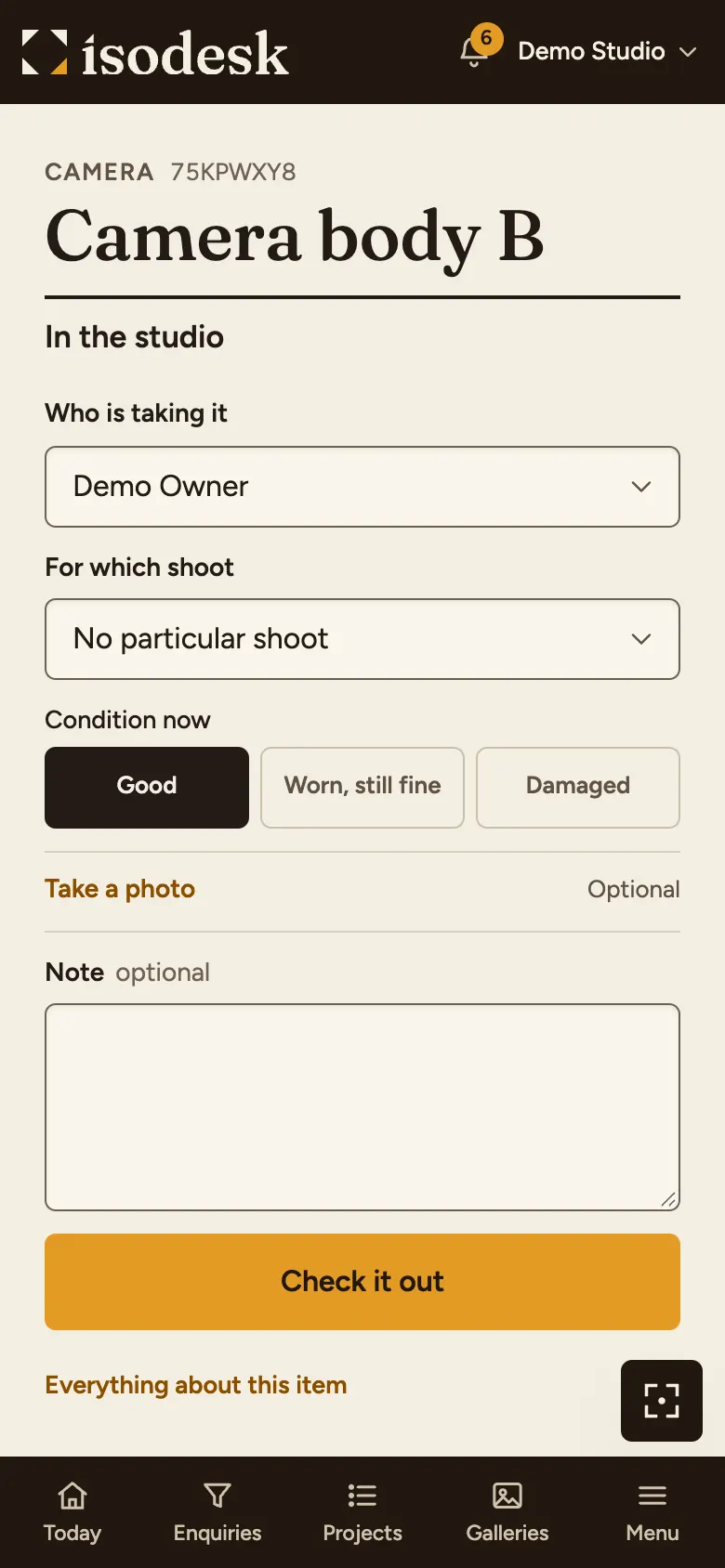
- Scan the label with your phone camera, or open Scan a label and type the code. The item opens with its check out or check in form.
- Choose who is taking it and its condition, and add a photo if you want one.
- When it comes back, say what condition it is in. Damaged opens a damage report.
- Giving something to another person while it is out records a hand over, with a warning. To check out a whole event at once, use the Gear tab.
- If gear is still out after its event, the project keeps asking until it is back.
Look after it, and record what it costs
- Log each service or repair on the item. Give it a rhythm, such as every 6 months, and the next date is worked out for you.
- The Care tab lists service due, and warranties and insurance ending within 30 days.
- Report damage or a loss on the item. Anyone who uses gear can report it, with a photo.
- Owner, admin and manager can enter the cost and record it as money out. It is then linked to the project, and counts in that project's profit.
- A cost you do not record as money out stays on the report, and is marked as not recorded.
Know where each shoot is
- After a shoot, open the Gear tab and press Record a copy under the event. Choose the card or drive, or say where it is.
- Tick that you opened the copy and the files are there, or press the check button later.
- The project asks until an event has two copies and someone has checked one.
- isodesk records what you tell it. It does not read the card or the drive, and cannot tell if a copy is good. Open your copies yourself.
- If a card holds the only copy on record and you check it out again, you see a warning. It does not stop you.
- Press Wiped or reused when a card goes back into use, so the count stays true.
See also
- Gear inventoryList your cameras, lenses, lights, cards and drives. See what each event is short of, check gear out with a QR label, log repairs and record where each shoot is copied.
- Rent gear for a shootSee what a shoot is short of, open a rental shop with the dates and city, keep your client out of it, and log the rental on the project.
Ask Isomate about isodesk
Answers come only from the pages of this website.
Updated 31/10/2026 · Markdown version